Help & user guide
A walkthrough of how Turrar works — for players, pokerroom admins, and tournament organisers.
Contents
- Getting started
- Pokerrooms
- Tournaments
- Invites
- Following & alerts
- Plans & pricing
- Your profile
- Privacy & data
- Need more help?
Getting started
Installing
Turrar runs as a native app on Android and iOS. Install it from Google Play or the Apple App Store. There is no full-featured web version — the website you are reading now exists for help, legal information, and as a landing page when someone taps an invite link without the app installed.
Play Store / App Store listing
Creating an account
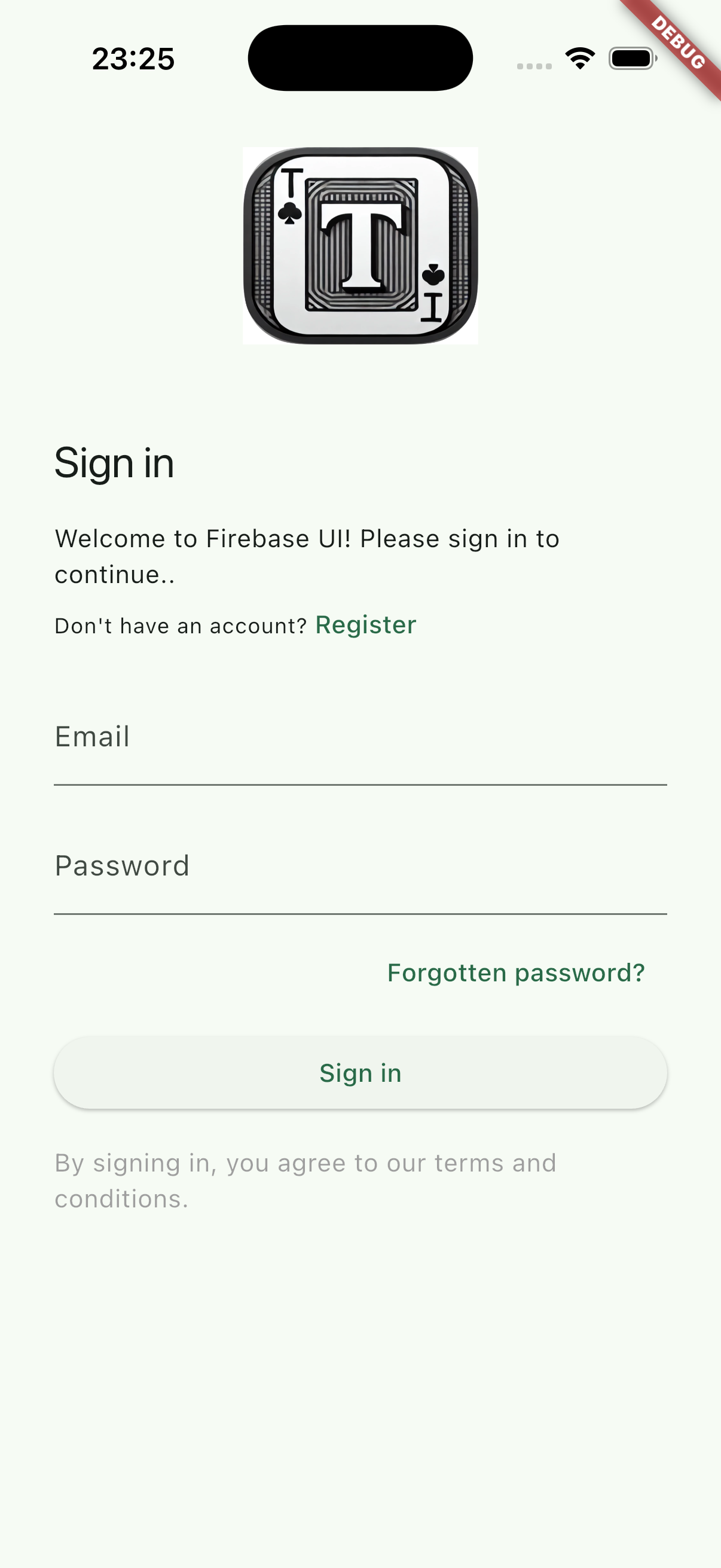
- On first launch, choose Sign up with email, Sign in with Google, or Sign in with Apple.
- Pick a nick — this is the display name other Turrar users see. You can change it later in your profile.
- Confirm your email address (if you signed up with email). You're in.
Signing in on a new device
Use the same email + password (or Google, or Apple) on the new device. Your data — pokerroom memberships, tournament history, profile — is restored automatically because it lives in your Turrar account, not on the device.
Pokerrooms — joining and finding
A pokerroom in Turrar is a club. Each room runs in one of four visibility modes, which its admins can change at any time:
Marketing-only
Listed in the public directory so players can discover the venue, but no one joins from the app. For rooms that handle membership at the door.
Open
Anyone with a Turrar account can join in one tap. Best for casual rooms growing their member base.
Members-only
Listed in the directory, but joining requires admin approval. For established clubs that vet members.
Hidden
Not listed anywhere. The only way in is an invite link from an admin. For private home games and curated guest lists.
Joining a listed pokerroom
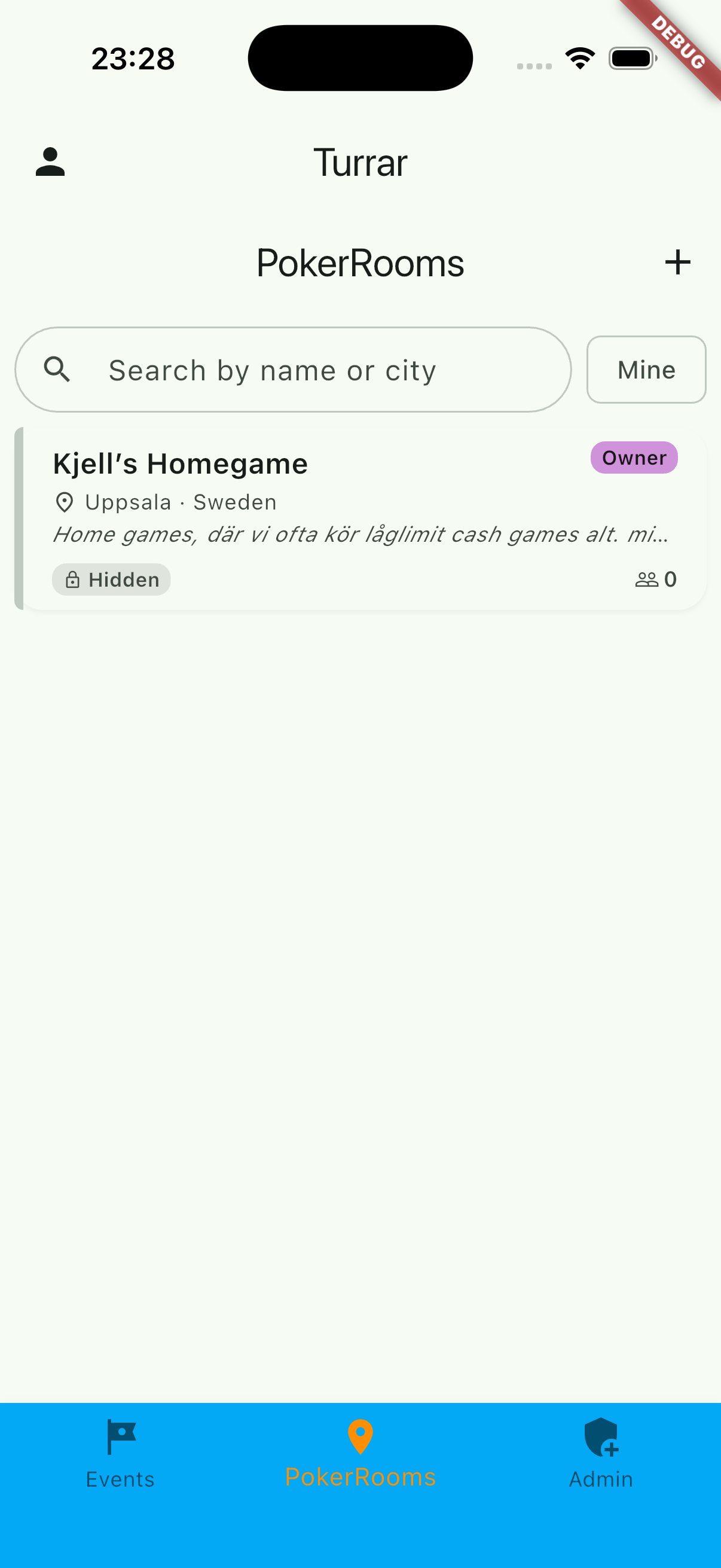
In the app, open the pokerrooms list (sorted by proximity if you've allowed location access). Tap a room → tap Join. In an Open room you're in immediately; in a Members-only room your request is sent to an admin for approval. Either way, once you're a member you can register for the room's tournaments.
Joining via an invite link
An admin can send you a link that looks like https://turrar.com/i/<token>. Tap it on your phone — if Turrar is installed, the app opens directly on the redemption screen and your membership request is sent for approval. If Turrar is not yet installed, the link sends you to this site with instructions to install first.
Finding pokerrooms near you
If you've granted location permission, the pokerrooms list is sorted by distance from your current location. Location is requested only when you open that screen, used in-session, and never stored on our servers. You can decline the permission and still use everything else.
Tournaments
Browsing tournaments
Each pokerroom has its own list of upcoming and past tournaments. Open a pokerroom → tap the Tournaments tab.
Joining a tournament
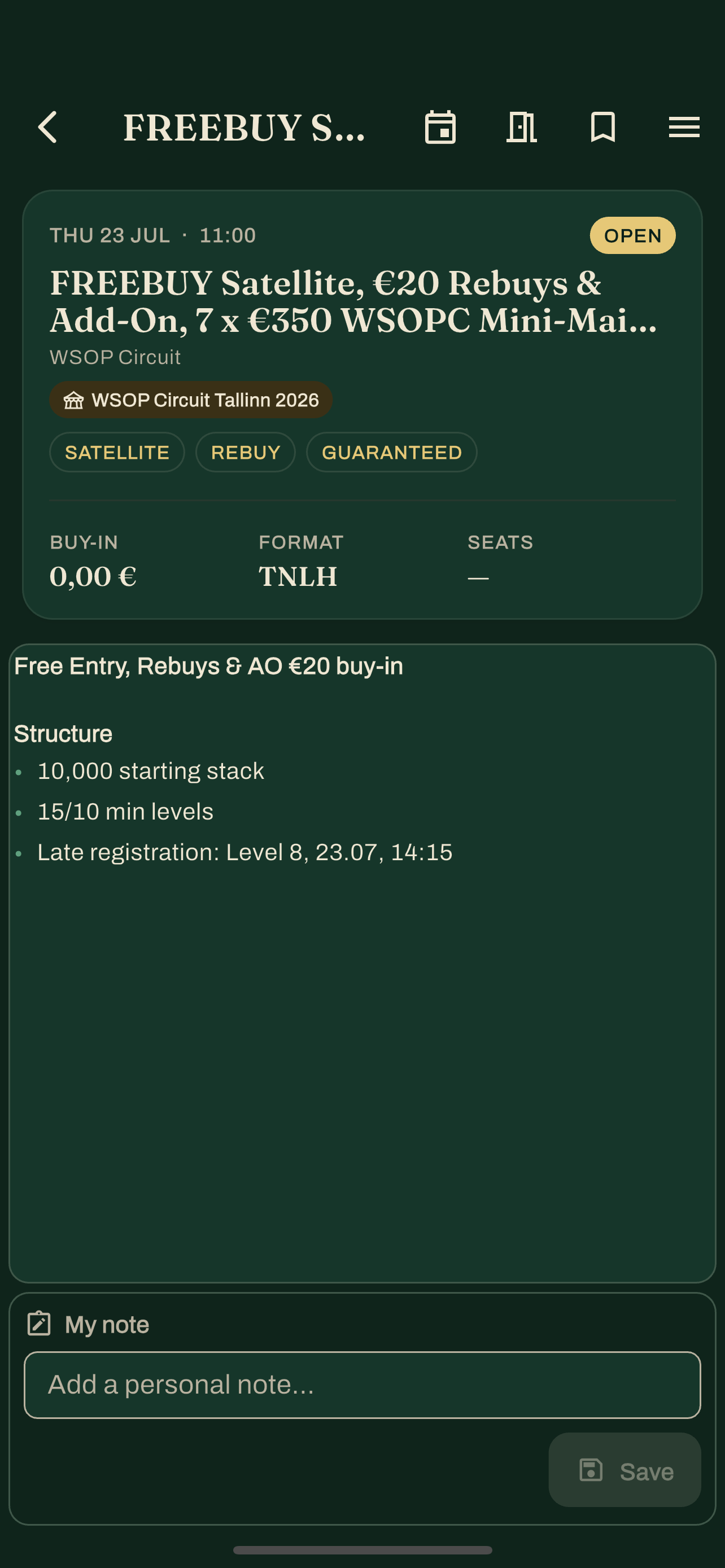
On a tournament's detail screen, tap Join. Some tournaments are open to all room members; some are members-only or invite-only — the screen tells you which rules apply.
Results
After a tournament finishes, the organiser enters the results (places and scores) in the app. Those results show up on the tournament screen and contribute to your personal tournament history.
Series & leaderboards
Rooms can group tournaments into a series — a season that awards points per finish and ranks players on a live leaderboard. Open a room's Series to see standings update as each tournament's results come in. A free club runs one active series with a straightforward linear leaderboard; Premium clubs can run several at once with custom scoring, tiebreakers, and automatic awards.
Cash games
Alongside tournaments, rooms can schedule cash-game sessions. Open a room to see its upcoming cash games, and join the digital waitlist so you're notified when a seat opens. Cash games don't record results or feed your stats — they're a way for the room to signal when and where a table is running.
Invites (for admins)
Pokerroom admins (and tournament-admins for tournament-scoped invites) can mint invite links from inside the app. Three modes — pick the one that fits the situation:
Single-use invite
Short expiry (default 24 h), one redemption. Best for sending a specific person a link by message.
Shareable link
No expiry, unlimited redemptions, revocable. Good for posters or social media, on rooms that accept new members.
Tournament invite
Links to a specific tournament rather than the room. Optionally lets the recipient skip the membership-approval step.
- Open the pokerroom you administrate.
- Tap the Invite button. Pick a mode from the dialog.
- Copy the link and send it to the recipient through whichever channel you prefer (message, email, etc.).
You can review and revoke active invites from the Active invites section on the pokerroom's edit screen.
Following & alerts
Turrar can tell you when a new game appears, so you don't have to keep checking. There are two ways to set that up:
Saved searches
Filter the tournament list (by date, buy-in, game, distance, and more), then save the search. Turrar watches for new tournaments that match and notifies you. Free players keep up to two saved searches and receive a once-a-day digest; Player Pro lifts the limit and switches alerts to instant.
Following rooms (watchlist)
Tap Follow on a room to add it to your watchlist and get alerted whenever it posts a new event — even for rooms you haven't joined. Free players follow up to five rooms; Player Pro makes it unlimited.
Calendar sync
Player Pro can export the tournaments you've joined as a live calendar feed (an .ics subscription). Add it once to Apple Calendar, Google Calendar, or Outlook and your joined games keep themselves up to date.
Notification controls
Everyone gets a global on/off switch and quiet hours. Transactional alerts — a seat opening, a tournament about to start, a membership approved — are always instant and free. Only discovery alerts (saved searches, followed rooms) are timing-gated. Player Pro adds advanced per-room and per-game rules.
Plans & pricing
Turrar's core loop is free forever: discover rooms, join and play tournaments, log your results, and stand up and run a basic club. Two optional subscriptions will add depth — Player Pro and Owner Premium are coming soon, and the app is free while we finish them. Each will include a 14-day free trial. The prices below are what we're planning and may change before launch.
| What you get | Free | Player Pro (soon) | Owner Premium (soon) |
|---|---|---|---|
| Price | 0 kr | 49 kr/mo · 490 kr/yr | 189 kr/mo · 1890 kr/yr |
| Discover, join & waitlist tournaments, events, cash games | ✓ | ✓ | ✓ |
| Results history & stats | Last 3 months | Full + CSV + cross-room | Full + CSV + cross-room |
| Saved searches / room follows | 2 / 5, daily digest | Unlimited, instant | Unlimited, instant |
| Advanced filters & calendar sync | — | ✓ | ✓ |
| Ads | Occasional affiliate slots | None | None |
| Run a club | 1 room (+1 hidden), 1 series, 12 events/yr | Same as Free | Unlimited rooms, series & events |
| Branding, recurring tournaments, integrations, analytics, bulk import, CSV export | — | — | ✓ |
Owner Premium is the top tier and will include everything in Player Pro — an owner is also a player, so you never pay twice. When the paid tiers launch, subscriptions will be purchased and billed through the Apple App Store or Google Play, and you'll manage or cancel them anytime from your store account. Prices are anchored in Swedish kronor (SEK) and may change before launch; the store sets your local price.
Your profile
Open the navigation drawer → Account. Your profile is deliberately minimal:
- Nick — the display name other users see. This is the one profile field you can edit; change it and tap Save profile to store it.
- Email — shown but read-only, because it's tied to how you sign in.
- Member ID — the code an admin needs to add you to a hidden pokerroom.
Tapping Save profile writes your new nick to your account (and to the public profile other members see) — it doesn't touch anything else on the screen.
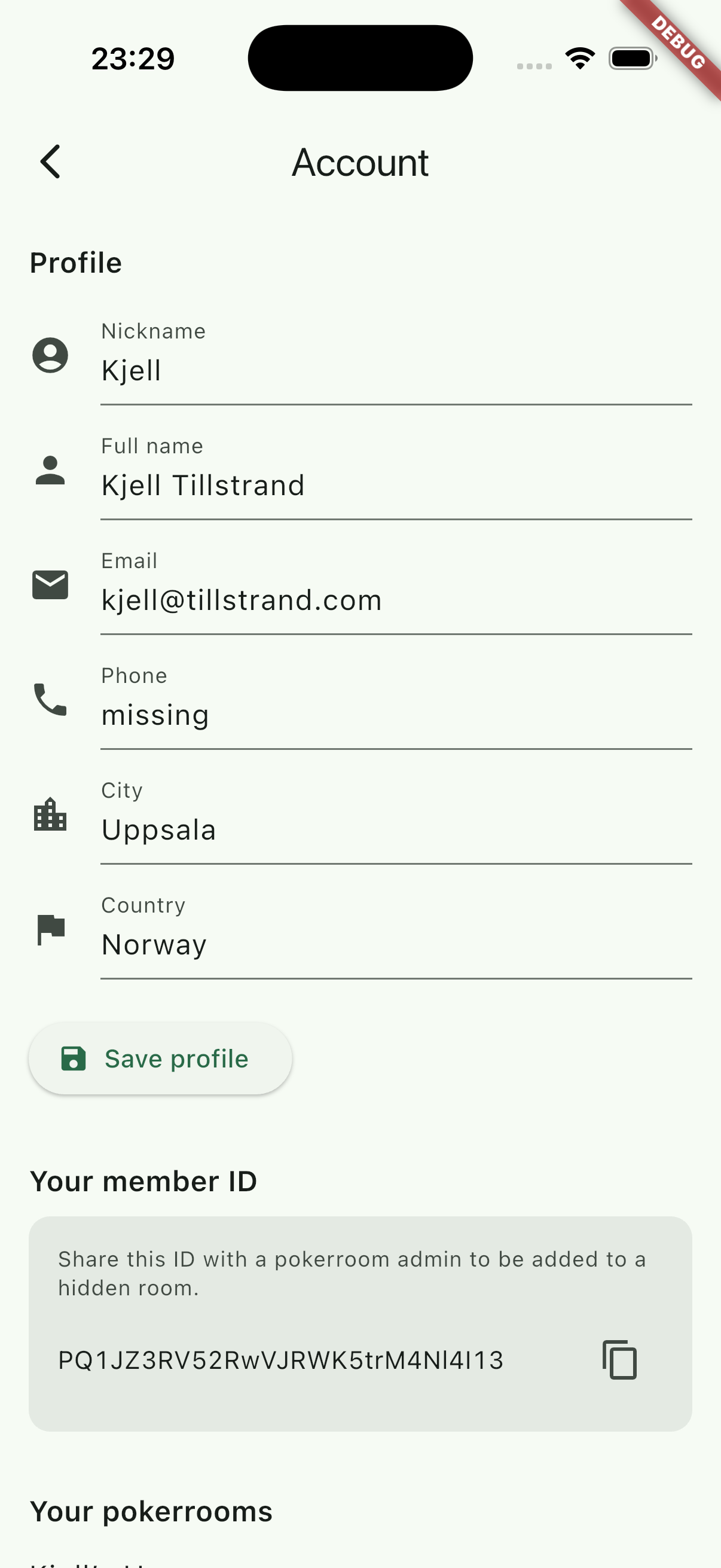
Below your profile, the same screen lists the pokerrooms you've joined (with a Leave button), your notification and consent settings, appearance, and account deletion.
Privacy & data control
Turrar is operated by Go Left Consulting AB (Sweden) under GDPR. See the privacy policy for the full details.
What we store about you
- Your email address and password (hashed by Firebase — we never see the cleartext).
- Your profile — your nick (display name).
- The pokerrooms you belong to and your role in each.
- The tournaments you've joined and any results entered.
- The timestamp of your last app open.
Deleting your account
You can delete your account from inside the app (Profile → Account → Delete account). Your personal data is removed; your tournament participation records are retained in anonymised form (your name is replaced with "(deleted user)") so that other participants' historical results are not affected.
Exercising your other GDPR rights
For access, rectification, restriction, portability, or any other right, email privacy@turrar.com. We respond within one month.
Need more help?
Email support@turrar.com and include:
- What you were trying to do.
- What you saw instead.
- The name of your pokerroom (if relevant) and the email address on your Turrar account.